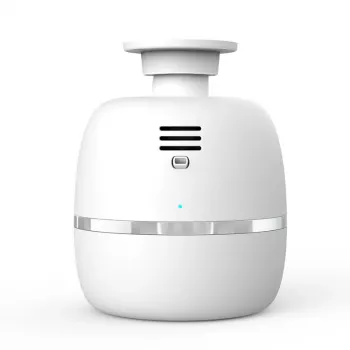
Most connection problems come down to a few basics: Bluetooth permissions, pairing conflicts, distance/interference, or the diffuser not being in pairing mode. Work through the steps below in order—each one removes a common roadblock without guessing.
Make sure your phone’s Bluetooth is turned on and your operating system is up to date. If the diffuser uses an app, update the app too. Older OS versions can block Bluetooth scanning or required permissions.
On many phones, Bluetooth devices won’t appear unless the app has permission to use Bluetooth, and sometimes Location/Nearby Devices permissions as well. Open your phone’s settings, find the diffuser app, and enable Bluetooth access (and “Nearby devices” or Location if prompted).
Power the diffuser on, then follow the pairing steps specific to your model so it becomes discoverable. If you’re not sure how your unit enters pairing mode, use the setup guidance in the main walkthrough here: https://lustrous.store/guide-smart-bluetooth-aroma-diffuser-large-rooms-guide/.
If your phone previously connected (or attempted to), the saved pairing can get “stuck.” In Bluetooth settings, tap the diffuser name and choose “Forget” or “Unpair.” Then restart your phone and unplug the diffuser for 30 seconds before trying a fresh connection.
Pair within a few feet of the diffuser. Temporarily move away from other Bluetooth accessories (earbuds, watches), turn off VPNs if the app uses a local connection, and avoid pairing near routers or microwaves that can add interference.
If possible, attempt pairing from another phone. If it connects on a second device, the issue is likely a setting or permission on the first phone. If it won’t connect to any phone, reset the diffuser (if your model supports it) and retry pairing.
Unplug it for at least 30 seconds, plug it back in, and then re-enter pairing mode. If your model has a dedicated reset or long-press button action, use that to clear previous connections before pairing again.


Leave a comment