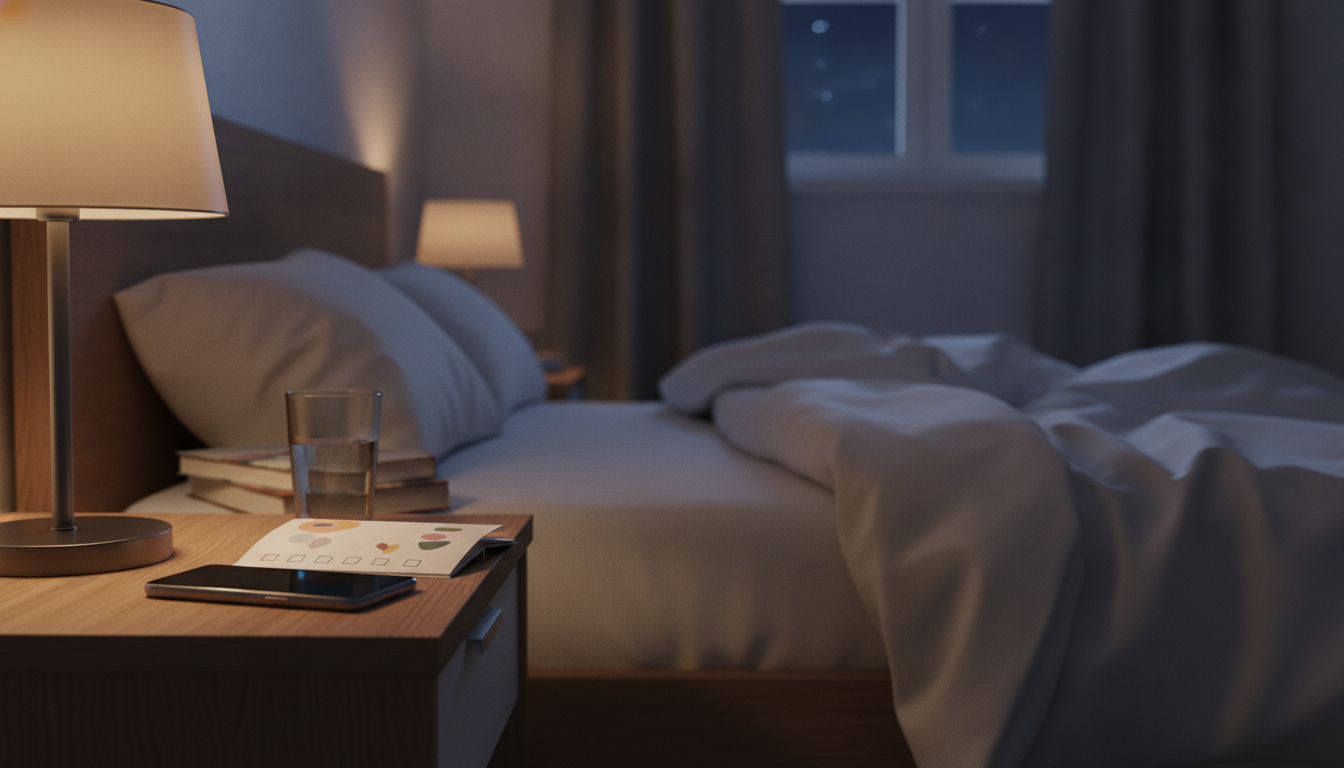
Many sleep problems start hours before bedtime with small, repeatable phone behaviors: bright light, endless scrolling, late-night alerts, and “just one more” content loops. Use the checklist below to spot the habits that quietly push bedtime later, make it harder to fall asleep, or fragment sleep overnight—then replace them with practical, low-friction alternatives.
If two or more feel familiar, it’s less about “discipline” and more about adjusting cues: light, stimulation, notification settings, and where the phone lives at night. For a baseline on healthy sleep habits, the American Academy of Sleep Medicine is a solid reference point.
Blue light is part of the picture, but not the whole story. Harvard Health notes that short-wavelength light can affect circadian rhythms, yet content intensity and engagement loops can be just as disruptive as brightness alone (Harvard Health Publishing).
A strong “night mode” isn’t extreme; it’s basic sleep hygiene. If you want a broader framework beyond phones (room temperature, caffeine timing, regular wake times), the National Sleep Foundation breaks down practical, evidence-informed habits.
| Habit to check off | How it hurts sleep | Low-friction replacement | Setting or boundary to try tonight |
|---|---|---|---|
| Scrolling in bed | Extends bedtime; increases mental arousal | Scroll on the couch only; bed is for sleep | Phone stays off the bed; set a 10-minute timer if needed |
| Watching short-form video late | High stimulation; time disappears | Switch to audio (podcast/audiobook) with screen off | Use sleep timer; remove the app from the home screen at night |
| Bright screen after lights out | Signals wakefulness; delays sleepiness | Dim + warm tone + minimal content | Enable Night Shift/blue light filter + lowest brightness + dark mode |
| Checking notifications “one last time” | Triggers new tasks/thought loops | Do a planned check earlier, then stop | Set a nightly cutoff alarm 60 minutes before bed |
| Sleeping with phone within reach | Encourages midnight checking | Charge across the room or outside bedroom | Use a physical alarm clock; phone charges in another spot |
| Vibrations and lock-screen previews | Micro-awakenings; anticipation stress | Silence and hide previews | Do Not Disturb + no previews on lock screen |
| Late-night work email/messages | Stress response; rumination | Schedule “work off” hours | Separate work profile; silence work apps after a set time |
| News or conflict-heavy content | Raises anxiety and alertness | Save for daytime; choose calming content at night | Create a “night” folder with only calm apps |
Blue light filters can help reduce short-wavelength light, but they don’t remove the mental stimulation of scrolling, video, games, or emotionally intense content. Pair filters with dimming, a consistent cutoff window, and phone placement out of reach for a bigger impact.
A practical starting range is 30–90 minutes before sleep, depending on how activating your typical content is. Start with a consistent 30-minute cutoff, then extend it if you’re still struggling—audio with the screen off is often an easier transition than “no phone at all.”
Use Do Not Disturb with emergency exceptions (favorites or repeated calls), silence non-essential apps, and hide lock-screen previews. If you can, use a dedicated alarm clock and charge the phone farther away while keeping emergency calls enabled.




Leave a comment