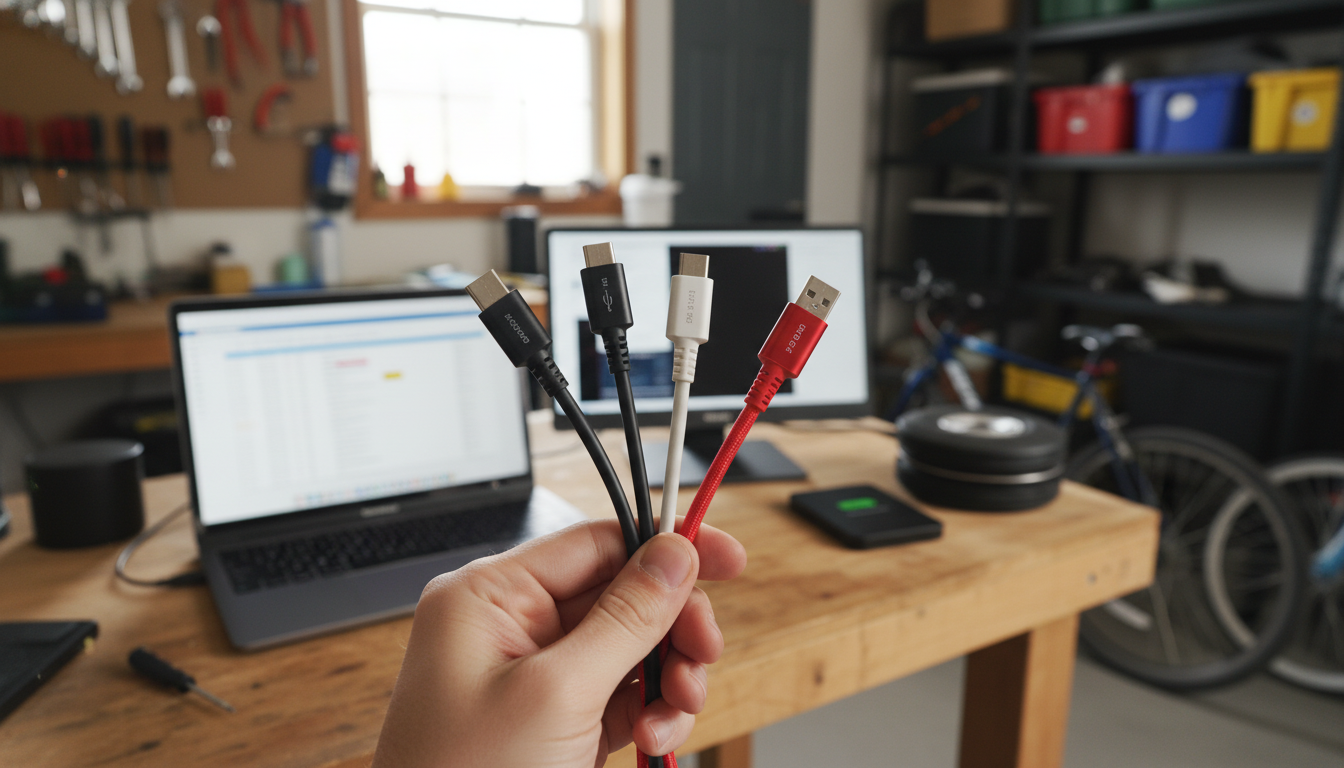
USB-C cables can look nearly identical, yet perform very differently. The quickest way to tell them apart is to check what each cable is built to carry: power (watts/amps), data (USB speed), and video (DisplayPort/Thunderbolt compatibility). A “USB-C” connector only describes the plug shape—not the capabilities inside.
Start with charging. Many cables are labeled on the jacket or packaging with a wattage (like 60W or 100W) or a current rating (like 3A or 5A). A 60W (3A) cable is commonly paired with phones, tablets, and many laptops, while higher-power laptops may need 100W or more. If the cable isn’t clearly rated, it may still work for low-power charging but can bottleneck faster chargers.
Some USB-C cables are “charge-only” or USB 2.0 data (up to 480 Mbps), which is fine for syncing photos occasionally but slow for external drives. Faster cables support USB 3.2 (often 5 Gbps or 10 Gbps). Packaging may say “SuperSpeed,” show “SS,” or list the data rate. If you move large files or use docks, data speed matters as much as power.
Not every USB-C cable can drive a monitor. Look for “DisplayPort Alt Mode” support or “Thunderbolt 3/4” markings if you need reliable video output. A cable that charges perfectly can still fail to send video if it’s not designed for it.
Higher-power (5A/100W+) USB-C cables typically include an e-marker chip and may be slightly thicker to handle current safely. Connector quality also matters—snug fit, reinforced strain relief, and durable braiding usually translate to better longevity. Features like a rotating connector can reduce twisting and wear during everyday use.
For a practical example of a sturdy fast-charging option and what to expect from a 60W (3A) cable, see this guide to a 60W USB-C to USB-C rotating cable.
Some do and some don’t. Fast charging depends on the cable’s power rating (amps/watts) and whether it supports USB Power Delivery; using an under-rated cable can slow charging even with a capable charger.







Leave a comment